
EduPython
A simple Python editor for school. Write your code, run it, and see your classes as a diagram. Python and pygame are already included, so there is nothing else to install.
Download
- Windows Download the file and double-click it. No installation needed.
- Mac (Apple Silicon) For Macs with an M chip (M1, M2, M3, M4 …). Open the file and drag EduPython into Applications. The first time, right-click it and choose Open.
- Mac (Intel) For older Macs with an Intel processor. Not sure? Apple menu > About This Mac shows “Chip” (Apple Silicon) or “Processor” (Intel).
- Linux Unpack the file and double-click EduPython. Run install.sh once to add it to the app menu.
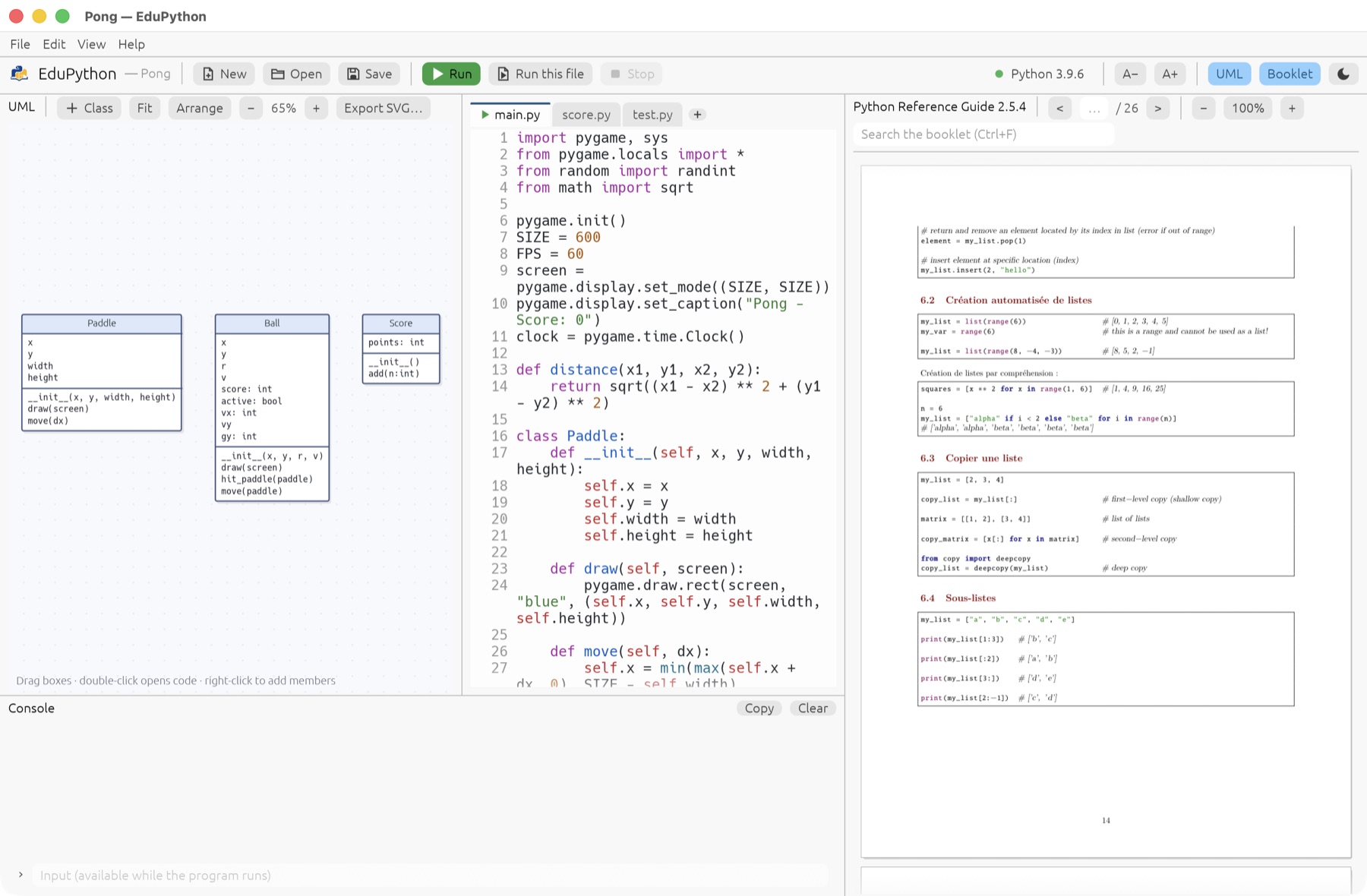
What it does
- Write and run Python programs.
input()works, and errors point to the right line. - See your classes as a UML diagram while you type.
- Make games with pygame.
- Read the exam booklet next to your code, search in it and copy examples.
For teachers and IT
Put EduPython.exe, the booklet (PDF) and an edupython.ini in the same folder.
The ini sets which Python to use and which booklet to show. A new booklet each year only means
replacing the PDF.
Example edupython.ini
[python]
; no path: use the built-in Python with pygame
allow_change = no
allow_install = no
packages = pygame

[booklet]
file = Python reference.pdf
title = Python Reference Guide

[display]
; hide file and network paths from pupils
show_paths = no

[projects]
; folder offered for every new project
folder = H:\Documents-
show_paths = nohides file and network paths (Python, package folders, the ini) from pupils. They still see the Python version and whether pygame is installed. -
folder = H:\Documentsis filled in for every new project and is where Open Project starts. Pupils can still choose another folder. Write the backslash after the colon:H:\Documents, notH:Documents. Variables like%HOMEDRIVE%work too.
Keep the ini somewhere else (--config)
The ini does not have to be next to the exe. Start EduPython with --config,
for example from a Start-menu shortcut. Its Target field would be:
\\server\apps\EduPython\EduPython.exe --config "\\server\config\edupython.ini"
An update then only replaces EduPython.exe; the ini stays where it is, and pupils
do not see where it is. Paths in the ini (such as the booklet) are relative to the ini’s folder.
If something goes wrong
If EduPython crashes, it shows a message and saves the details to
%LOCALAPPDATA%\EduPython\crash.log. Please send that file along with your report.
All options are on
GitHub.